
Overview
The ObjectRecog widget recognizes objects in your webcam. It works two ways at once:
- Out of the box, with no training, it names common objects — the
label outlet emitscup,laptop,dog,bottle,keyboard,person… (the 80 COCO classes). - Trained, it recognizes your specific objects — your particular mug, a product box, a tool. Record a few examples of each of up to 4 objects; the match outlet then emits the name of whichever one is in view.
Like FaceTrack and PoseRecog it runs entirely on-device (MediaPipe), needs the NTK desktop app, and the camera turns on only while the widget is active.
Main body
- Camera Enable checkbox — Turns the camera on or off
- Slot selector — choose which of the 4 slots Record and the “more” panel’s tuning controls apply to.
- Record button — click to begin training the currently selected slot. A brief “get ready countdown (the button pulses amber) gives you time to get into position, then the widget captures a short burst of examples of your held pose (the button pulses red while actively capturing). Click again at any point to cancel the countdown or stop the capture early.
Outlets
Two string outlets:
| Outlet | What |
|---|---|
| match | the name of whichever trained slot is currently recognized (“My mug”), or empty when none is. Branch on it downstream with IfThen / Gate |
| label | the top COCO class name in view (“cup”), or empty when nothing recognizable is there. Works with no training |
You can still train up to 4 objects — which one matched comes out as its name on match. The four dots in the widget body show which slot is matching.
How it works
- Check the box on the left edge to turn the camera on.
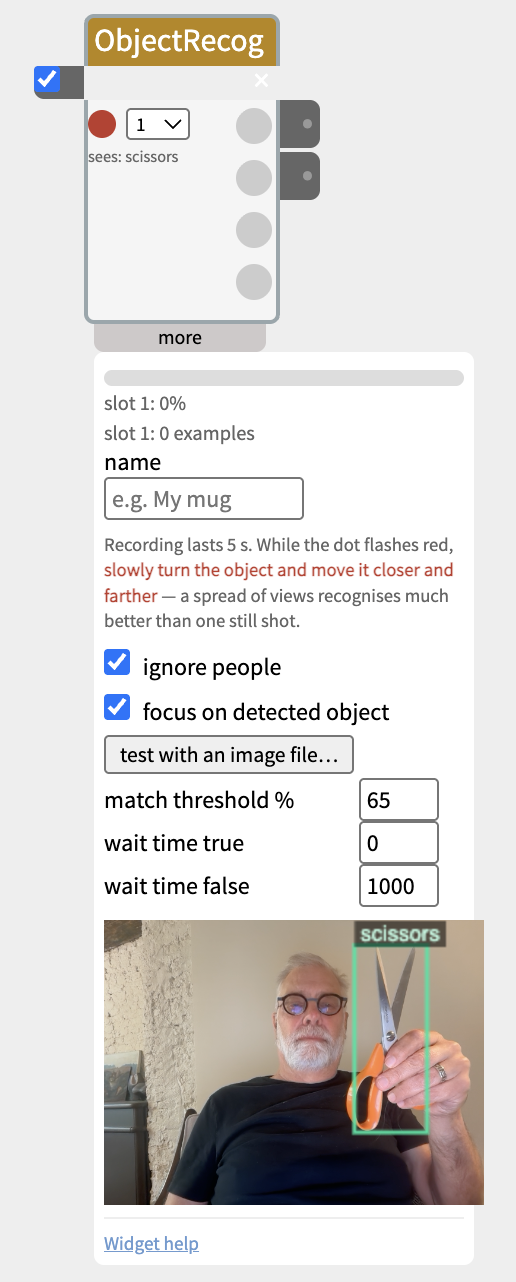
- The widget body shows sees: label (the live COCO guess) and, once trained and matched, the matched slot’s name in bold green.
- The four dots on the right show each slot’s live match level (grey = untrained, red → yellow → green as it approaches / passes the threshold).
- The camera preview in the “more” panel draws a box around the object. When a trained slot matches, the box turns bright green and shows that slot’s name; otherwise it shows the plain COCO class.
Training a slot
- Open the more panel. Pick a slot (1–4) in the widget body.
- Put the object clearly in view of the camera.
- Click the red record dot. A 3-second countdown runs (dot pulses amber), then it samples for 5 seconds (dot pulses red). While it samples, slowly turn the object and move it closer and farther — a spread of views recognizes much better than one still shot.
- Type a name for the slot (“My mug”).
- Repeat for the other objects you want to recognize.
The recorded thumbnail and example count show in the more panel. Re-recording a slot replaces it; a recording that never got a clear look is rejected and the previous training kept.
Settings (“more” panel)
- ignore people (on by default) — the detector almost always sees you, holding the object up, as the biggest thing in frame. With this on,
persondetections are skipped so the label and the crop lock onto the object instead. Turn it off only if you want to recognize people as objects. - focus on detected object (on by default) — matches on the detected object’s bounding box rather than the whole camera frame, so the background and lighting matter far less. Falls back to the whole frame automatically when nothing is detected (e.g. an object that isn’t a COCO class).
- test with an image file… — run the same detect + recognize pipeline on a still image from disk, so you can build and check a patch’s logic before pointing a camera at anything.
- match threshold % — how confident a match must be to count (default 65).
- wait time true / false — same as IfThen/Gesture: delay before the
matchname appears, and how long it lingers after the object leaves.
Tips & limits
- Backgrounds matter unless “focus on detected object” is on (and even then a bit). Record each object in a couple of spots / angles so it isn’t keying on one background.
- Keep the object large and centred while training and using it.
- It recognizes objects, not people — two people in different clothes might sort into different slots on a given day, but it’s reading the clothing, not the person.
- The label outlet is empty for anything outside the 80 COCO classes; a trained slot can still recognize it.
- First use loads two model files (~18 MB total) — a short pause the first time the camera starts.
Example patches
- ObjectRecog.label → Text (Render Markdown) — a live caption of what the camera sees.
- ObjectRecog.match → SpeechOut — say the name of the object being shown.
- ObjectRecog.label → LLM → SpeechOut — “tell me a fact about a {label}”.
- ObjectRecog.match → IfThen → Servo / DigitalOut — physical response when a specific trained object appears.