
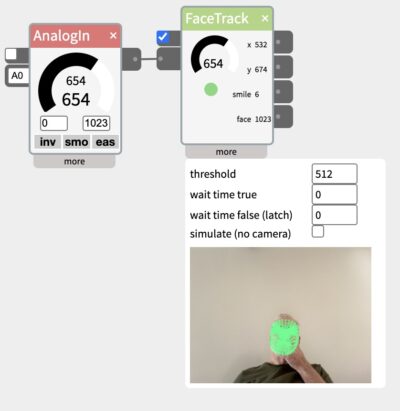
Overview
The FaceTrack widget uses the computer’s camera to find a face and
report its position, whether it’s smiling, and whether a face is
present at all — no training required, it works immediately on any
face in view.
Unlike a simple always-on camera widget, FaceTrack’s camera only turns
on when you want it to: an incoming value crossing a threshold
gates tracking on and off, the same pattern IfThen uses. Wire a
distance sensor, a button, or anything else to the input and the
camera only activates when that condition is met — useful for privacy
and for not running face detection continuously when nothing’s there
to detect. If you just want it running all the time, wire (or drag the
in-widget dial to) a value that stays above the threshold.
Main body
- Camera Enable checkbox — Turns the camera on or off
- Dial — shows the live input value that gates tracking on/off,
and can be clicked and dragged to test the threshold without any
hardware wired in at all. - Status dot — shows whether tracking is currently on, a face is
currently detected, and whether it’s mid-wait on the threshold’s
wait time (before starting or before latching off). - Status message — brief feedback for camera permission problems
or detection errors. - Outlet readouts — live
x,y,smile, andface(detected)
values.
More panel
- Threshold — the input value that turns tracking (and the
camera) on. - Wait time true — how long the input must stay above threshold
before tracking actually starts. - Wait time false (latch) — once tracking is on, how long the
input must stay below threshold before tracking actually stops —
a brief dip below threshold within this window doesn’t stop it. - Simulate (no camera) — bypasses the camera and threshold gate
entirely, letting you manually setx,y,smile, andface detectedwith sliders/a checkbox to test everything downstream
without a camera or a face in frame. - Camera preview — shown automatically once tracking starts, a
live view of the camera with the tracked face points overlaid.
Outputs
- x — horizontal center position of the detected face (0-1023).
- y — vertical center position of the detected face (0-1023).
- smile — how much the detected face is smiling, on a 0-1023
scale. - face — whether a face is currently detected (0 = no, 1023 =
yes).