
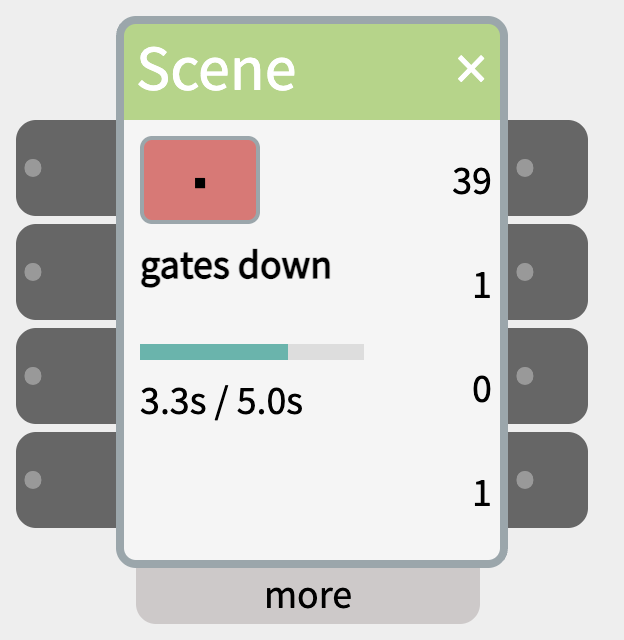
A Scene plays a sequence of things over time – a road crossing whose lights flash and gates come down until the train has passed, a welding light flickering on a model building site, a shop-window display – as one readable script instead of a tangle of Pulse, Gate and Sequence widgets. The script is written in cues, like a theatre lighting desk: each cue starts on an event (play, a sensor, or a time), and every line inside a cue has its own time, counted from the start of that cue.
Contents
- Trying it
- The road crossing example
- Cues
- Lines inside a cue
- The idle section
- Inlets and outlets
- Settings in the more panel
- The workers example
- Notes
Trying it
A new Scene already contains a working road-crossing script. Click ▶ to play it and ■ to stop; you can watch it with nothing wired in. When a cue is waiting for a sensor, the status flashes what it’s waiting for (wait in1 low) – click it to start the cue by hand, as if the sensor had fired.
Then wire the outlets to a Servo, LEDs (DigitalOut or AnalogOut), a NeoPixel or a Display, and a sensor or button into in1.
The road crossing example
outs gate, left, right, running

cue gates down
  0s  blink left/right every 0.5s
  2s  gate to 90 in 3s

cue gates up when in1 low max 60s
  2s  gate to 0 in 3s
  5s  left = 0
  5s  right = 0

idle:
  gate to 0 in 3s
  left = 0
right = 0outsnames the four outlets, so the script can saygateinstead ofout1. The outlet namedrunningsends 1 while the scene plays.cue gates downstarts on play: the crossing lights blink in turn from 0 s, and at 2 s the gate moves to 90 over 3 s.cue gates upwaits untilin1is low – the train has cleared – or 60 s at most, so a broken sensor can’t hold the gates down forever. Then the gate rises, and the lights go off once it’s up.
Cues
A cue line is cue and a name, which shows in the widget while the cue plays. Names can have spaces, but must be unique and can’t contain when, after or loop.
| Cue line | The cue starts |
|---|---|
cue NAME | On play, if it’s the first cue; otherwise as soon as the cue before it has finished. |
cue NAME after 2s | 2 s after the cue before it has finished. |
cue NAME after 2s..6s | After a random time between 2 and 6 s, different each time. |
cue NAME when in1 high | When the cue before it has finished and in1 is above the threshold (low: below it) – straight away if it already is. |
cue NAME when in1 low max 60s | The same, but starts anyway after 60 s. |
| Repeating | Does |
|---|---|
loop at the end of a cue line | Plays the cue again each time it finishes, until the scene is stopped. |
loop 3 times | Plays the cue 3 times, then goes on. |
loop until in1 high | After each round, goes on if in1 is high (or low); otherwise plays it again. |
repeat on a line after the last cue | Goes back to the first cue. repeat from NAME goes back to the named cue. |
A cue has finished when its last line has happened and its last move has arrived; a blink without for doesn’t count. After the last cue (with no repeat), the scene ends: outlets keep their values and blinks stop.
Lines inside a cue
Each line is a time and an action: 2s gate to 90 in 3s. The time counts from the start of the cue (leave it out for 0s), and lines don’t wait for each other.
| Action | Does |
|---|---|
NAME = VALUE | Sets an outlet to a number, or to text in quotes (sign = "CLOSED", for a Display). |
NAME to VALUE in TIME | Moves an outlet smoothly from where it is to VALUE over TIME. Add an easing for a more natural movement: crew to 30 in 2s ease sine (the same easings as Tween). |
blink NAME every TIME | Flips the outlet between 1 and 0. blink left/right every 0.5s alternates two outlets. Add between 0 and 255 for an LED on AnalogOut, and for 2s to stop by itself. |
wait TIME | Does nothing for TIME – used with then, below. |
then starts a line when the line above it ends, so you don’t have to work out its time: then lamp to 255 in 2s, or with a gap, then 0.5s gate to 0 in 1s. A pause between two moves is then wait 1s.
- Times always need a unit:
2s,1.5s,500ms. - Outlets are the names from the
outsline, orout1toout4. A new set, move or blink on an outlet replaces whatever was running on it; to start one after another, usethen. - Lines run in time order, whatever order they’re written in.
#starts a comment; indenting is only for reading.
The idle section
The lines after idle: say how the scene looks when it isn’t playing. When the patch opens, they’re applied instantly, so a servo starts where the scene expects it. When the scene is stopped, they’re played: the crossing’s gate goes back up over 3 s rather than with a jerk. With no idle section, stopping freezes the outlets where they are.
Inlets and outlets
- start – plays the scene from its first cue when it rises above the threshold. stop – stops it, playing the idle lines.
- in1, in2 – read by
when,maxandloop until. Unwired, awhencue waits; click the flashing status to start it. - out1-out4 – named by the
outsline (hover over an outlet to see its name). An outlet namedrunningsends 1 while the scene plays and 0 otherwise, e.g. to start a second Scene when this one ends.
Settings in the more panel
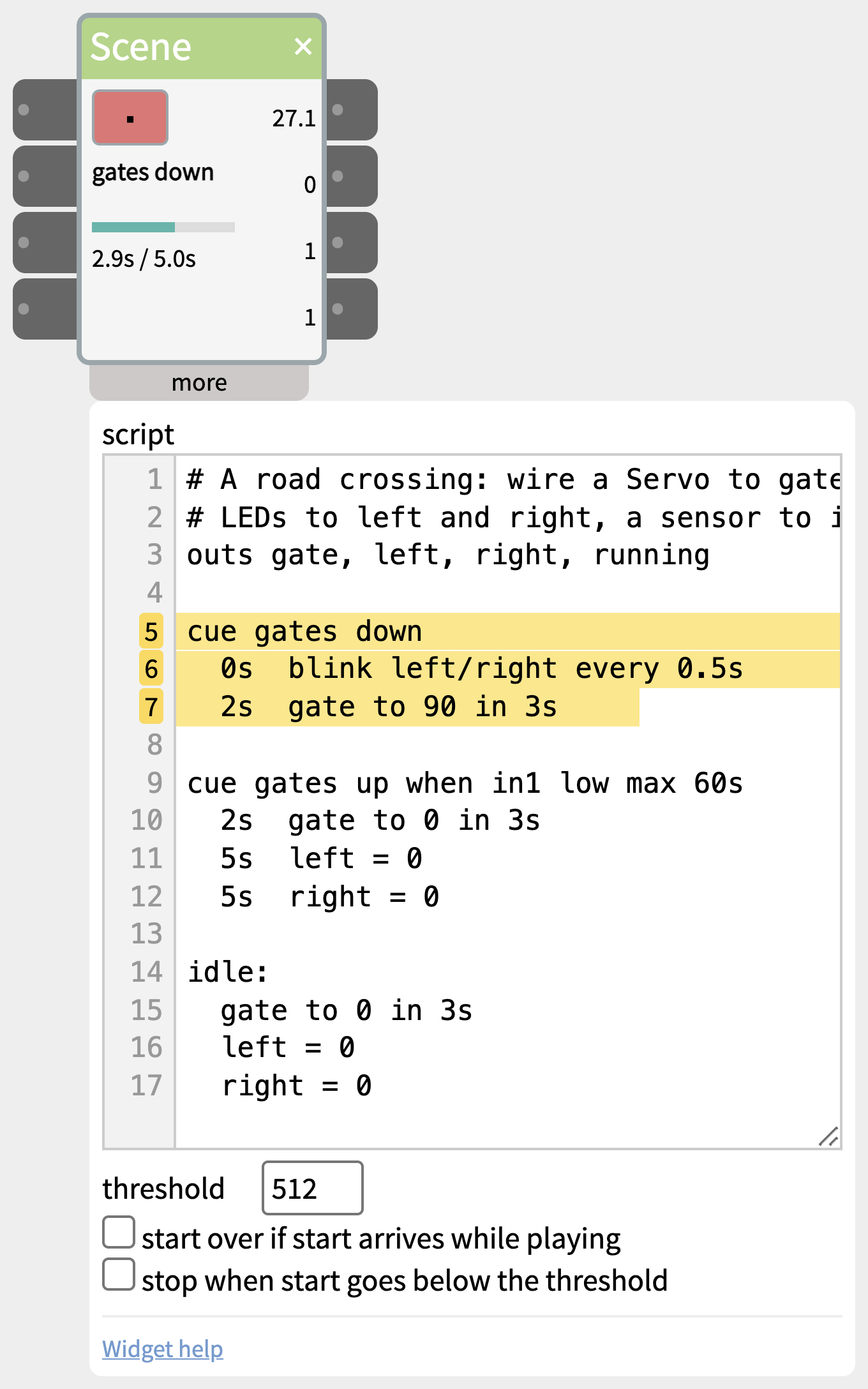
- script – checked as you type: a mistake is marked red in the line numbers and explained under the box; click it to go to that line. While the scene plays, the running lines are highlighted. The script takes effect when you click out of the box.
- threshold – the level above which start, stop, in1 and in2 count as high (default 512).
- start over if start arrives while playing – otherwise a new start is ignored until the scene has finished.
- stop when start goes below the threshold – the scene plays only while start is held high, e.g. a button held down.
The workers example
outs arm, weld, crew

cue walk over
  0s     crew to 30 in 2s ease sine     # a worker walks over

cue work
  0s     arm to 120 in 1s
  1s     blink weld every 80ms for 2s
  3s     arm to 40 in 1.5s

cue step back after 2s..6s              # a pause, different each time
  0s     crew to 10 in 1s
  1.5s   crew to 30 in 1s

repeat from work

idle:
  arm = 40
  weld = 0
  crew = 0
The worker walks over once; then the arm swings, the welding light flickers, and after a random pause the worker steps back – over and over from work until stopped.
Notes
- Nothing happens when I click play – look for “script error” in the widget and red line numbers in the more panel.
- A cue never starts – the flashing status shows what it’s waiting for. Check the sensor and the threshold.
- A servo jumps when the patch opens – add its starting position to
idle:. - Scene also runs in a patch pushed to the board.