
Overview
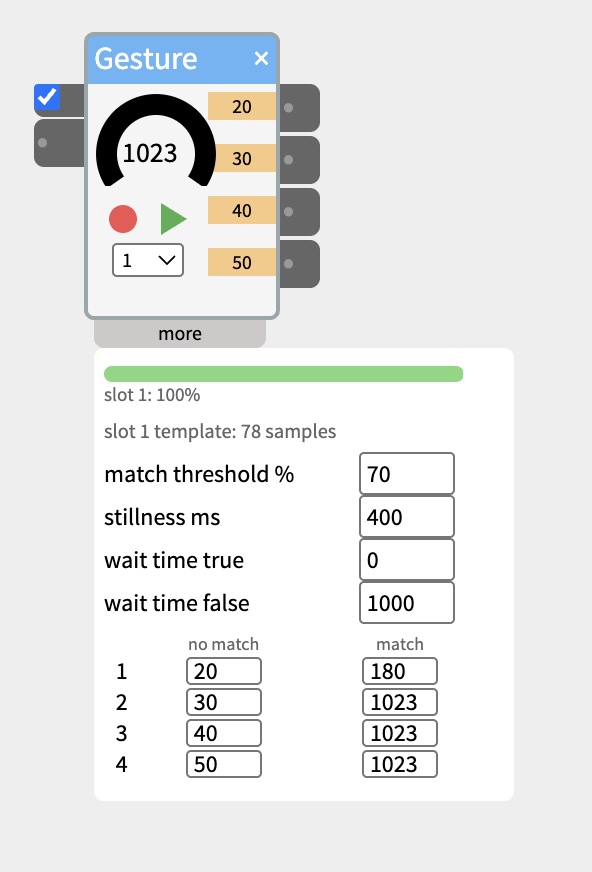
The gesture widget can recognize sensor output patterns that you record. For example, if you want something to happen when a sensor indicates something is touching a pressure sensor in a certain pattern, then a matching sound can be played.
Gesture can record up to 4 gestures and will distinguish between each of them when running. Different outputs correspond to the four gestures as they are recognized.
You can record and test gestures right on the widget itself, using its built-in dial — no hardware needs to be connected yet. Once you’re ready to use a real sensor, just wire it into the widget’s input in place of the dial.
The “more” panel lets you fine-tune recognition: match threshold % controls how close a live gesture needs to be to a recorded one to count as a match, and wait time true/false control how long a match holds before releasing.
The widget uses something called DTW, which is Dynamic Time Warping — an algorithm for comparing two sequences that may vary in speed or timing (e.g., you did the gesture faster this time, or paused partway through). Instead of comparing sample-by-sample at fixed positions, it finds the best alignment by “warping” the time axis, so a slow version and a fast version of the same gesture shape still score as a close match. That’s why Gesture doesn’t need you to record and replay a motion at exactly the same speed.
Reference: https://en.wikipedia.org/wiki/Dynamic_time_warping
Features
- Knob: The knob shows the values coming into the input on the left. You can also move the knob by clicking and dragging it (this is useful for recording a test gesture once the record button has been clicked.
- Record: The red record button starts recording a gesture of sensor values over time. The recording is stored in one of four slots, determined by the dropdown menu below the record/play buttons.
- Play: The play button plays back a recorded gesture that is stored in the slot set by dropdown.
More Panel
- Match bar: this shows how well an incoming gesture matches the recorded gesture in the currently selected slot. Details of the match are indicated below the bar.
- Match Threshold %: This sets the minimum match quality percentage for an actual match that changes the output.
- Stillness ms: This setting helps the widget determine the start and end of the gesture. If there are no changes in the input for this number of milliseconds the next change will determine the start of the gesture. Similarly, if there is this length of stillness after some change, that will determine the end of the gesture.
- Wait time true, wait time false: The wait time true and wait time false options are useful when you want something to react after a pause when an incoming value has met your gesture criteria. For example, if you are using a proximity sensor to make a sound when someone steps near, you could use a wait true time of 2000ms to not play the sound until two seconds have elapsed after the gesture. Similarly, if you wanted the same sound to keep going after the gesture is recognized, you can set the wait false time to say, 20,000, so the sound has a full 20 seconds to play out.
- No Match, Match: These determine the output of the widget for each gesture slot and the four corresponding outputs.